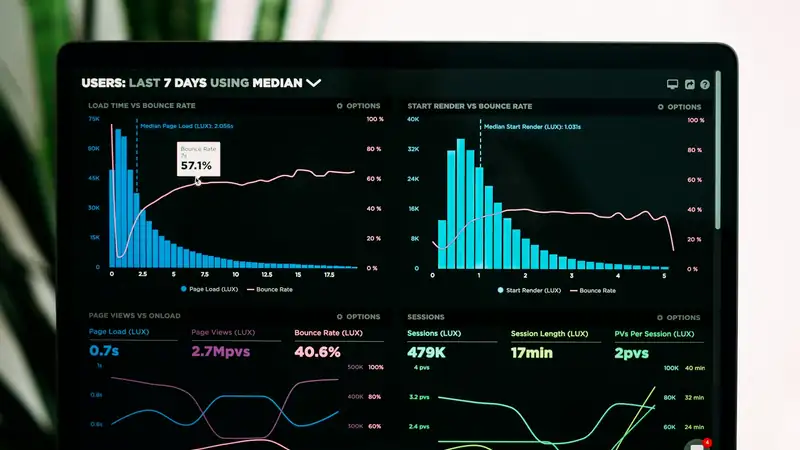
Photo by SpeedCurve on Unsplash
Core Web Vitals are three measurements Google uses to describe how a page feels to real visitors: Largest Contentful Paint (LCP) for loading, Interaction to Next Paint (INP) for responsiveness and Cumulative Layout Shift (CLS) for visual stability. The targets are LCP within 2.5 seconds, INP under 200 milliseconds and CLS under 0.1. On WordPress, the biggest wins usually come from better hosting, optimized images, fewer plugins and careful handling of fonts and scripts.
This guide skips the jargon and gives you a sensible order of work. If you would rather have a specialist handle it, browse the SEO and digital marketing and WordPress development listings.
The three metrics in plain English
| Metric | What it measures | Good target |
|---|---|---|
| LCP | How long the biggest visible element (often a hero image or heading) takes to appear | 2.5 seconds or less |
| INP | How quickly the page responds when someone taps, clicks or types | 200 milliseconds or less |
| CLS | How much the layout jumps around while loading | 0.1 or less |
Google evaluates these on a page-by-page and, in some reports, a group-of-pages basis, using data from real Chrome users when enough is available. That is called field data. Lab data, from tools that simulate a visit, is useful for testing fixes but may not match what your visitors experience.
How to check your scores
- PageSpeed Insights: enter a URL and look at the field data section first, then the lab diagnostics.
- Search Console: the Core Web Vitals report groups URLs as good, needs improvement or poor, which helps you find patterns such as all product pages failing.
- Browser developer tools: useful for specialists to dig into what loads and when.
Test your home page, your most important service or product page and a blog post. Test on mobile first, since that is where most sites struggle.
Step 1: Start with hosting and caching
If the server is slow to respond, everything else is slower. Cheap shared hosting that is overloaded can cap what any other optimization achieves. Signs of trouble include slow admin screens and long waits before the page starts loading.
- Ask your host about current PHP versions, built-in caching and a content delivery network (CDN).
- Turn on page caching, either through the host or a well-regarded caching plugin. Use only one caching layer at a time unless you know how they interact.
- Use a CDN for static files if your visitors are spread across regions.
Step 2: Fix LCP, the loading problem
On most WordPress pages the LCP element is a large image or a headline in a page-builder section. To improve it:
- Resize images before uploading. A photo that is 4000 pixels wide displayed in a 1200 pixel slot wastes bandwidth.
- Use modern formats such as WebP or AVIF where your tools support them.
- Do not lazy-load the hero image. Lazy loading is useful for images below the fold, but delaying the main image slows LCP.
- Preload the main image or font if your theme or optimization plugin supports it.
- Avoid slider and video backgrounds at the top of the page unless they are essential. They are common LCP offenders.
Step 3: Fix CLS, the jumping layout
Layout shifts happen when something loads and pushes content around. The usual causes on WordPress are:
- Images and embeds without set dimensions. Make sure width and height are defined so the browser can reserve space.
- Web fonts swapping in. Use a font-display setting that limits the jump, and consider hosting fonts locally.
- Ads, banners and cookie notices that appear late and push text down. Reserve space for them.
- Late-loading widgets such as chat bubbles, review badges and pop-ups.
Step 4: Fix INP, the responsiveness problem
Poor INP is usually a JavaScript problem. The page looks loaded, but the browser is busy and cannot respond promptly to a tap. On WordPress this often comes from:
- Too many plugins loading scripts on every page.
- Third-party tools such as tracking pixels, heatmaps, chat widgets and tag managers.
- Heavy page builder features or large animation libraries.
- Complex menus and filters, especially on store category pages.
Audit what loads. Remove tools you no longer use, delay non-essential scripts until after the visitor interacts, and load scripts only on pages that need them. Many optimization plugins and asset managers can do the last two.
Step 5: Trim plugins and theme weight
The number of plugins matters less than what each one does. One well-built plugin can be lighter than three small ones, and a poorly built one can slow every page. To find problems:
- Test on a staging site.
- Deactivate suspected plugins one at a time and re-test.
- Replace heavy ones with lighter alternatives, or custom code if a developer can do it cleanly.
Choose a lightweight theme with sensible defaults. Multipurpose themes bundled with dozens of features can add weight you never use.
A note on page builders and ecommerce
Page builders make design easy but can output a lot of markup and script, so keep sections simple and avoid stacking effects such as animations, sliders and parallax. Stores add their own challenges: product filters, carts and checkout pages are dynamic and cannot always be cached, so test those pages separately from your home page and treat them as the priority if revenue depends on them.
A sensible order of work
- Take a full backup and work on staging if possible.
- Record baseline scores for three key pages.
- Fix hosting and caching.
- Optimize images, especially the top-of-page image.
- Reserve space to stop layout shifts.
- Cut or delay unnecessary scripts.
- Re-test, and give field data a few weeks to update before judging the result.
Change one thing at a time where you can, so you know what helped. Field data is based on a rolling window, so improvements take a while to appear in Search Console.
Do Core Web Vitals affect rankings?
Page experience is one of many signals, and content relevance matters more. Treat the vitals as a way to make the site better for visitors, with possible search benefits as a bonus rather than a guarantee. A fast page also tends to convert better, since people leave slow pages. That matters for local businesses, as shown in our guide to local SEO and site basics.
When to bring in help
If you have tried the basics and scores are still poor, the cause may be in custom code, a page builder's output or a complex store. A developer can profile the page and prioritize fixes. If you run a store, the ecommerce development specialists in the directory often have experience with speed on product and checkout pages. For a broader view of who is available, start at the directory.
Frequently asked questions
What are good Core Web Vitals scores?
Google's targets are LCP of 2.5 seconds or less, INP of 200 milliseconds or less and CLS of 0.1 or less. These are measured at the 75th percentile of real visits, so most of your visitors should meet them.
Why does my PageSpeed score differ from Search Console?
PageSpeed Insights shows lab data from a simulated test and, where available, field data from real users. Search Console uses field data only, over a rolling period. They often differ, and field data is the one that counts.
Is a caching plugin enough to pass Core Web Vitals?
Rarely on its own. Caching helps server response and LCP, but INP and CLS usually depend on scripts, fonts and layout. You typically need images, scripts and hosting looked at too.
How long before improvements show up in Search Console?
Usually several weeks, since the report uses a rolling window of real-user data. Use lab tests to confirm fixes in the meantime, then check the field data later.